¶ Preparation
You need a large language model (LLM) and must store its access data.
We currently support ChatGPT via Microsoft Azure, Mistral AI and ChatGPT via the public OpenAI API.
For compliance reasons, we recommend Microsoft Azure and Mistral AI.
¶ Azure
¶ Step 1
Select “Create” to define your desired zone (Europe):

¶ Step 2
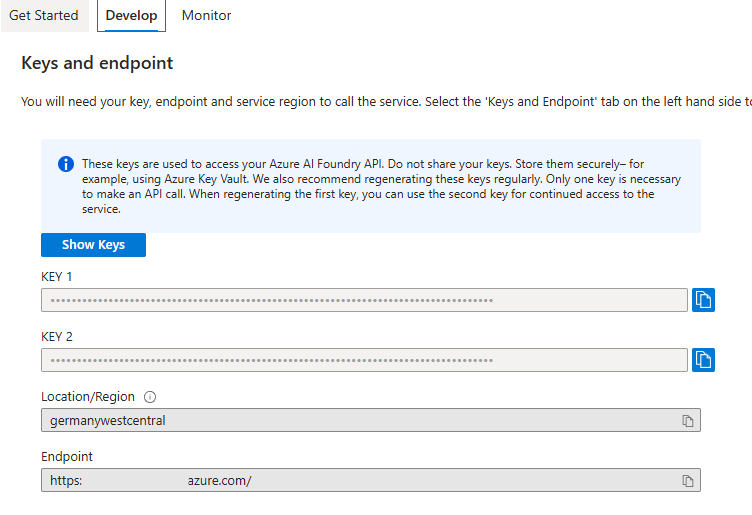
Write down the keys and the endpoint:
¶ Step 3
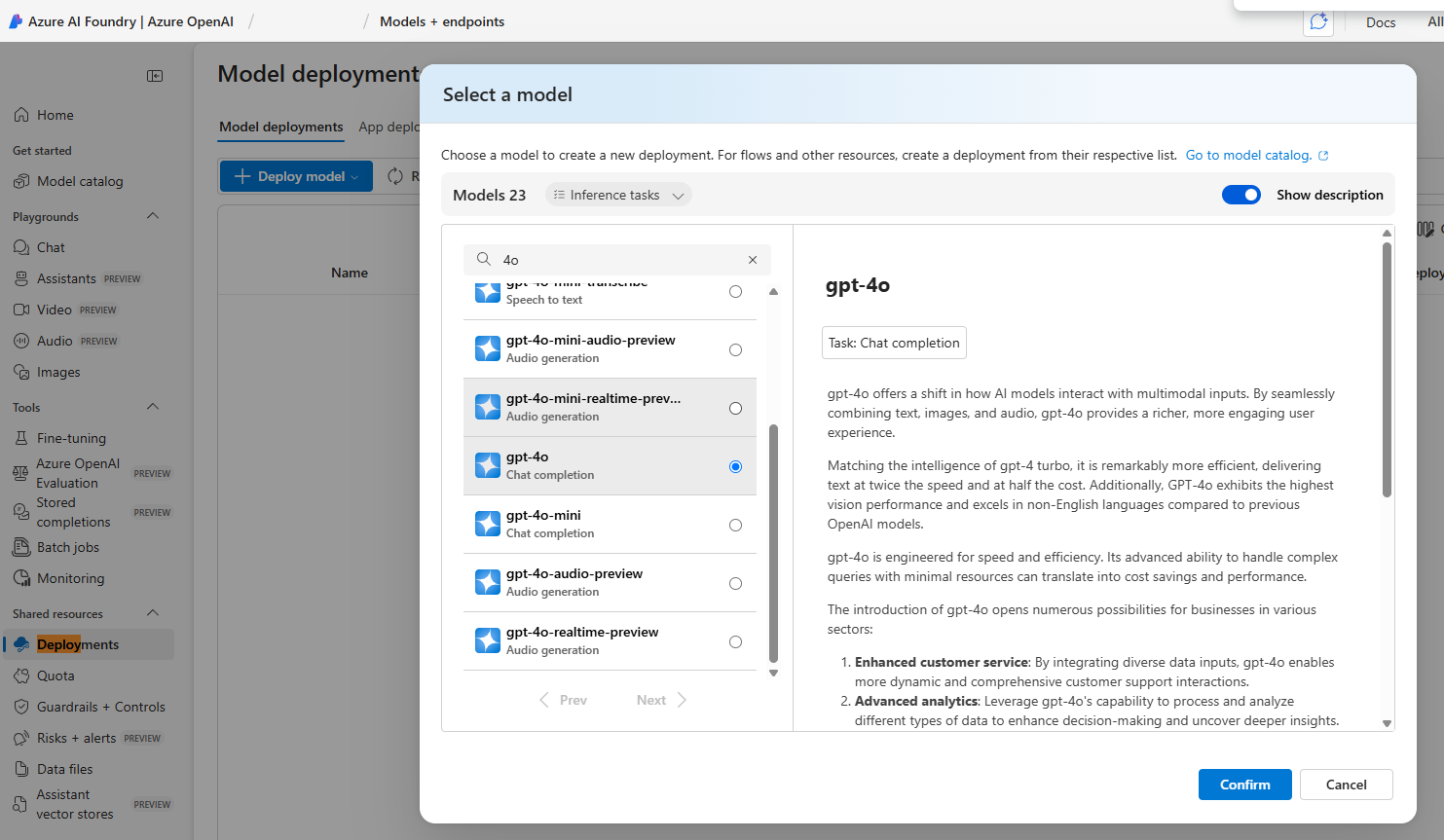
Create an LLM in Azure AI Foundry Portal. We recommend GPT-4o:
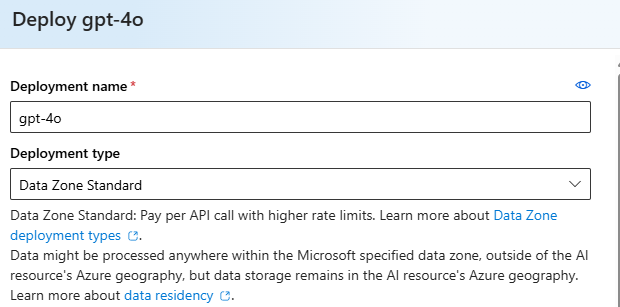
Note the deployment name:
¶ Mistral
In order to create an API key, you will need an account and a workspace with admin rights. Follow Mistral’s instructions for more information: https://docs.mistral.ai/getting-started/quickstarts/admin/manage-workspaces.
If you have already completed these steps, log in at console.mistral.ai.
¶ Step 1
You can add API keys to each workspace. To do so, open Mistral Studio and select the desired workspace from the workspace dropdown.
¶ Step 2
Click Create API Key. Then, give the key a unique name.
Then, click "Create new key." Make a note of the key right away. It will only be displayed once.
You can manage your keys at any time under My API Keys.
¶ Step 4
Now switch to your LOLYO instance and open the AI Settings option in the admin area under Settings:
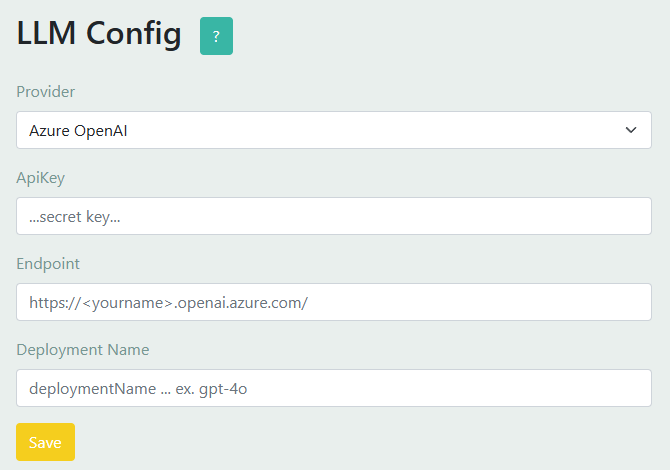
Now enter the key, endpoint, and deployment name.
¶ Aisha in the admin area
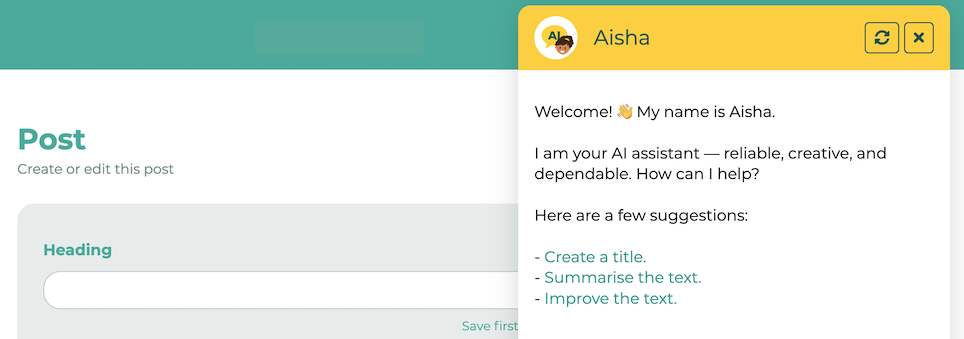
Once configuration is complete, Aisha will be available to you in the admin area for content generation.
¶ Aisha in the user area
If you would also like to make Aisha available for company content for your employees, you can insert the Aisha element on a page under Add content:
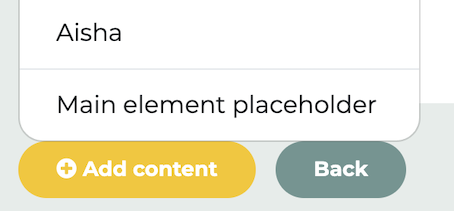
You can specify whether the Aisha window should open or close when the page is opened. To do this, edit the Aisha element on the relevant page and select the "open" option if necessary.
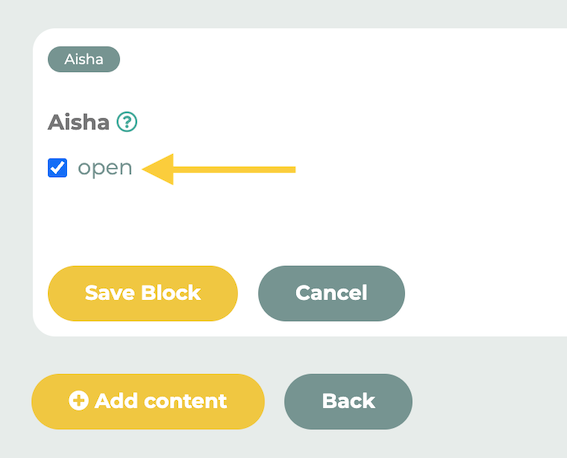
Open:
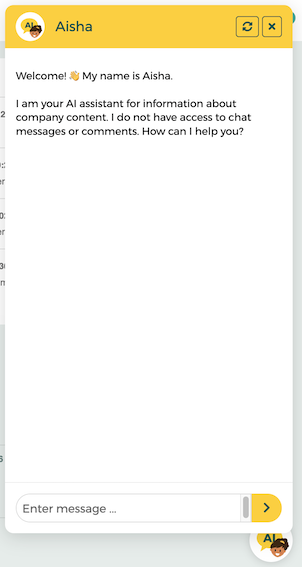
Closed: