Unlisted Apple apps cannot be searched for publicly in the App Store, but are only available via a direct link.
To distribute these apps centrally to iOS devices, Apple Business Manager (ABM) is connected to Microsoft Intune.
This way, the unlisted app is first imported into ABM, then synchronized with Intune, and finally automatically rolled out to the managed devices—without any manual installation by users.
¶ Requirements
- Existing Microsoft Intune infrastructure.
- The app is available as an unlisted app in the Apple App Store. https://help.lolyo.net/de/Administratoren_Hilfe-Technik/Accounts_und_App-Daten/Wahl_von_Verteilung_der_Apple_iOS_App
- ABM is connected to Microsoft Intune (MDM server & token active)
¶ Step 1 - Add app to ABM
- Open the ABM and go to Apps & Books.
- Then select My Apps and search for the unlisted app using the unlisted URL: To do this, copy the URL directly into the search field and press “Search”. This is the only way to find and add the unlisted app:
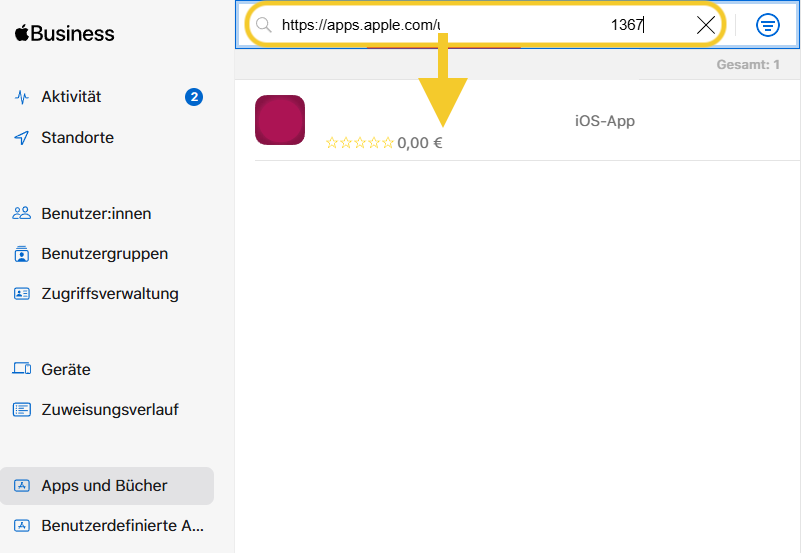
- Finally, add the app to ABM.
¶ Step 2 - Import app into Intune
- Open Intune and select Tenant Management → Connectors & Tokens → Apple VPP Token to check whether the token is active. If not, you can set it up here: https://learn.microsoft.com/en-us/intune/intune-service/apps/vpp-apps-ios
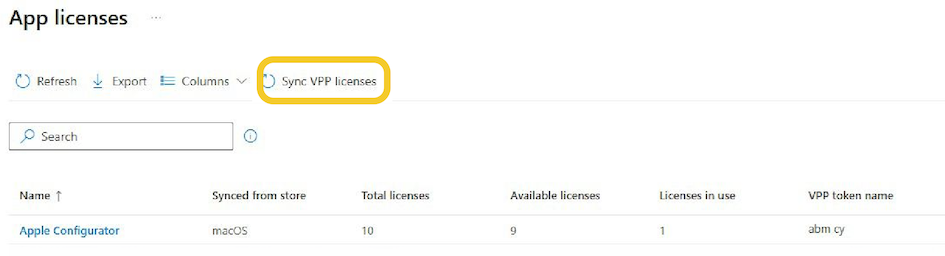
- In Intune, select Apps → All Apps → Add → iOS Store App (VPP) and synchronize it with the ABM.
¶ Step 3 - Assign app
Assign the app to the desired user or device groups.
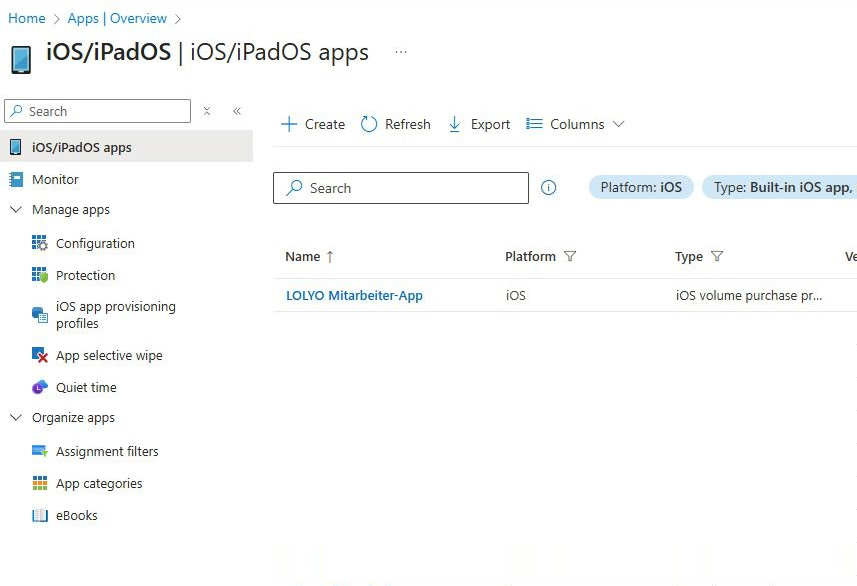
Then synchronize the devices and the app will be installed automatically.