The task planner in LOLYO allows you to assign various tasks to your employees, helping you to plan your projects more effectively.
¶ Create task planner (if page does not yet exist)
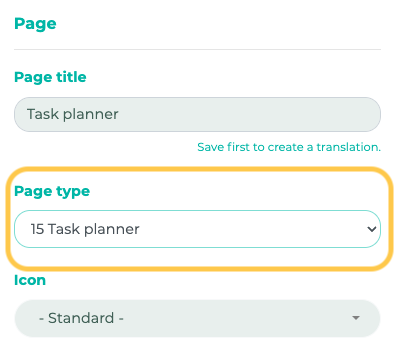
If you have not yet created the corresponding page, go to Pages & Menu and create a new page. Enter a title for the page and select '15 Task Planner' under 'Page Type':
Now, select the groups for which the page should be visible, then select 'Published' as the status.
Finally, click Save.
¶ Task planner in the user area
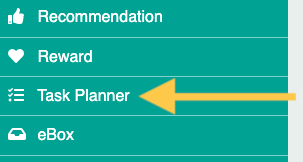
Switch to user view and click on the 'Task planner' menu item (or the corresponding page with your chosen page title).
¶ Create new task
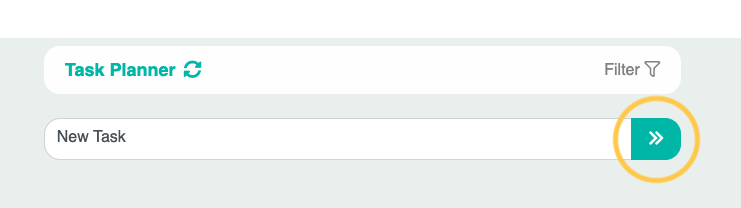
First select a title and then click on the icon:
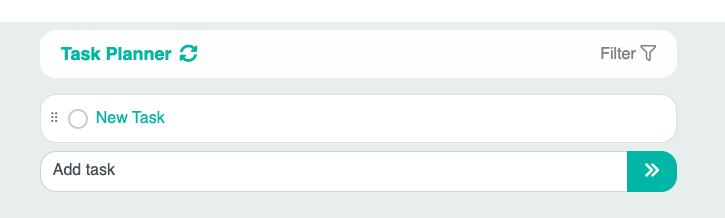
A new task has been created and should now be visible in the overview.
¶ Add steps
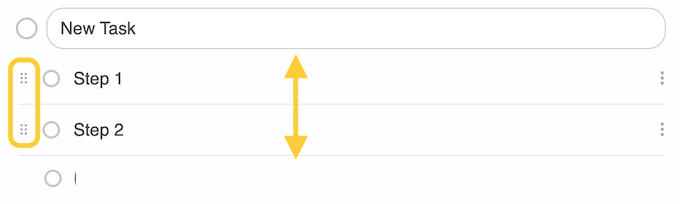
You can break the task down into several steps. To do so, click Add step:

You can reorder the individual steps using drag-and-drop:
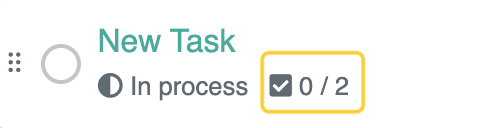
In the task overview, you can see how many steps have already been completed:
¶ Assign tasks to people and set time periods
Open a task by clicking on its title. In the next window, you can specify the time period within which the task should be completed. To do this, click on the calendar icon under Start and Due date and select a date.
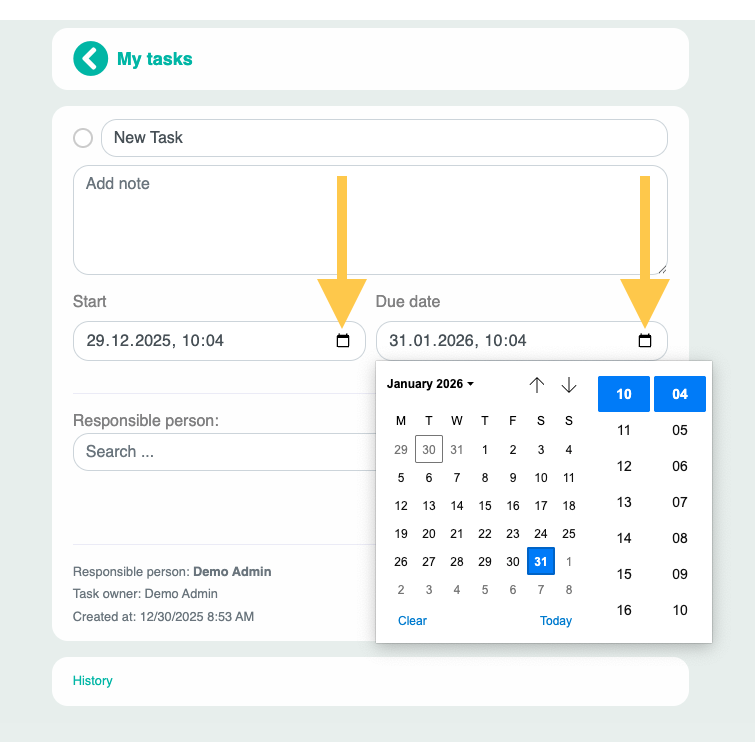
You can also add a note to provide more detail about the task, if necessary.
You can now assign the task to a person. To do this, enter a name in the Responsible person field and select the relevant person from the menu.
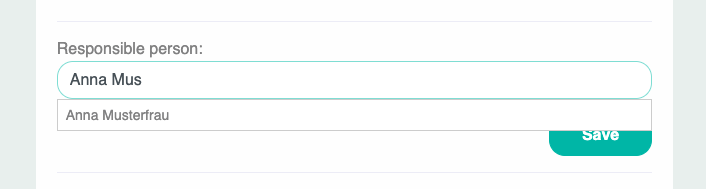
Then click Save.
¶ Set Status
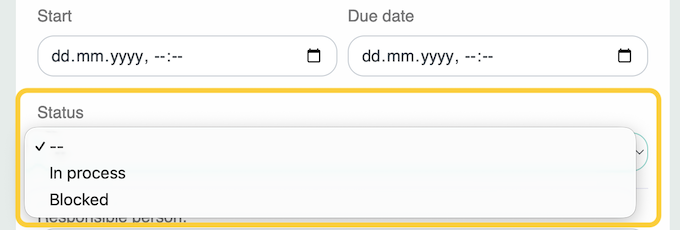
This status can be used to indicate whether a task is currently being worked on. The available options are 'In process' and 'Blocked'.
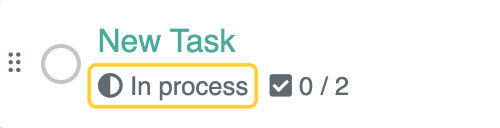
The status is also displayed in the overview:
¶ Filter
You can also filter for specific tasks in the task overview.
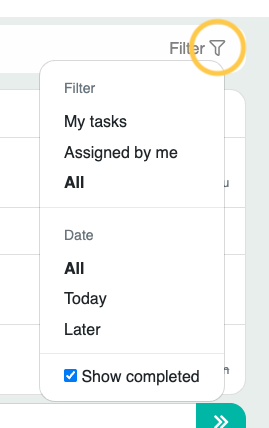
To do this, click on the filter icon and select one of the following options from the menu under “Filter”:
- My tasks: This is where you can see the tasks that have been assigned to you, or that you have created but not yet assigned to anyone.
- Assigned by me: You can view the assignment of tasks to other employees here.
- All: Displays all tasks.
You can also use the options under 'Date' to apply additional filters.
- All: Displays all tasks, including those without a due date, that match the other filter options you have selected.
- Today: Displays all tasks that match the selected filter options and are due today.
- Later: Shows all tasks that match your chosen filter options and are due after today.
Selecting the box next to Show completed will display completed tasks. The previously selected ‘Filter’ and ‘Date’ filters will also be taken into account here.