If employees have forgotten their login details, you can view them as follows:
¶ Look up Username
To look up the Username, go to the Administration area and select Employee. Click on the pencil icon next to the relevant member and view the Username/code.
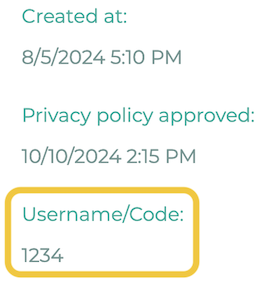
Alternatively, if you have imported an employee from a CSV file, you can read the Username here:
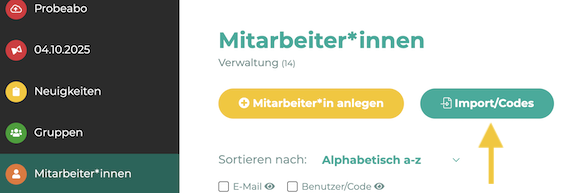
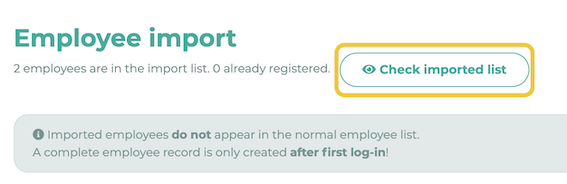
¶ Reset or change password
There are 2 options for resetting/changing an employee's password:
1. manual reset/change directly at the respective employee
Go to the administration area and click on Employee. Then click on the pencil icon next to the employee in question.

In the right sidebar you will now find the entries
“@-Invitation”
and
“Set new password”
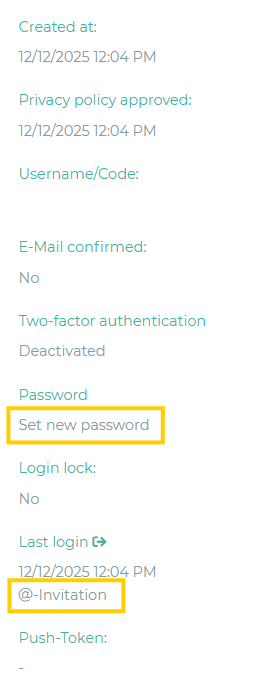
1.1 @-Invitation
If you select this option, a password will be generated automatically and sent to the person by email.
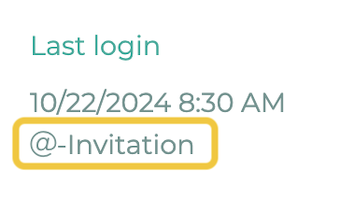
1.2 Set new password
If you select this option, you will be redirected to a new page.
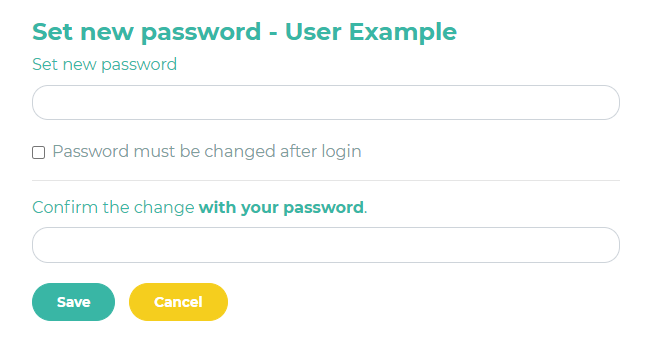
Enter the employee’s new password in the upper field
and your own current password in the lower field for confirmation.
Click “Save”.
The new password will then be saved and is effective immediately.
2. reset/change by re-importing your CSV list
Go to the Administration area and click on Employees. Click on Import/Codes. Now create or update employees in CSV.
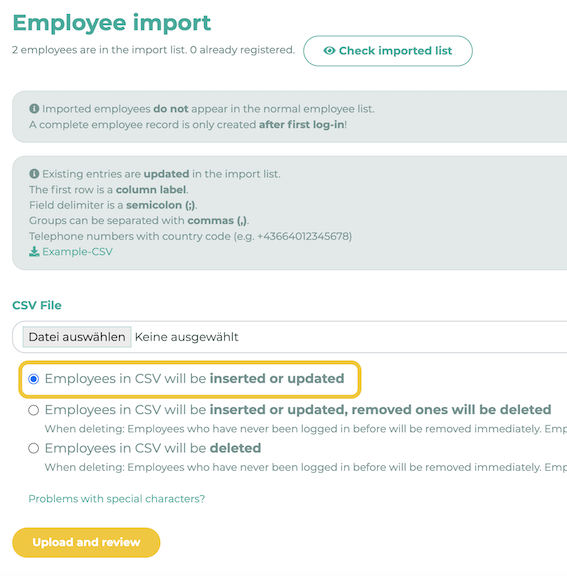
If you want the employee to be able to reset the password themselves, enable the 'Request access data' option, see How to activate the option "Request access data"?