Here, we’ll show you examples of how you can use the Automation Target Group placeholders to customize the display of birthdays, anniversaries, and new hires.
To do this, you must have created at least the extended profile fields for birthday, anniversary, or new hires and filled them out for your employees. Please make sure that these fields are actually date fields.
Please note: If you have restricted the employee contact list, people celebrating a birthday, anniversary, or new hire will only be displayed if the respective contact list restriction allows it.
¶ Birthdays
{listusers:AUTOMATIONID}{Firstname} {Lastname} turns {PLACEHOLDER:AgeYears}
{else} It's nobody's birthday today{/listusers}
Enter the ID of the birthday automation in the {listusers:AUTOMATIONID} placeholder, or copy the placeholder from the automation target group.
Tip: You can find an automation's ID at the end of the URL when you open the automation. You can then enter the ID of any automation in the placeholder.

This example also reveals how old the person will be. To do this, you can use the placeholder {PLACEHOLDER:AgeYears}. For this to work, you must define a external key for the extended profilefield used for the birthday.
Example: We use the external key “Birthdate” for the Date of Birth field. Therefore, we now enter {Birthdate:AgeYears} in this placeholder.
With the {else} placeholder, you can define which text should be displayed when no one has a birthday.
You can now insert this into a formatted text field or an HTML element:
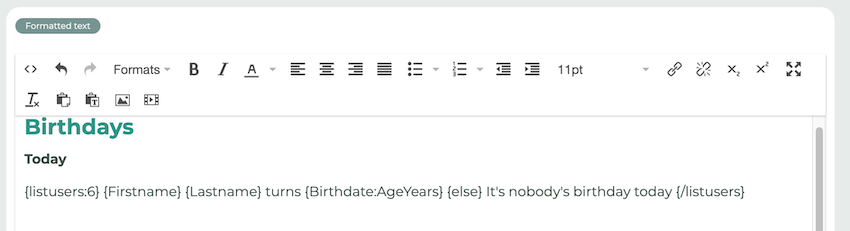
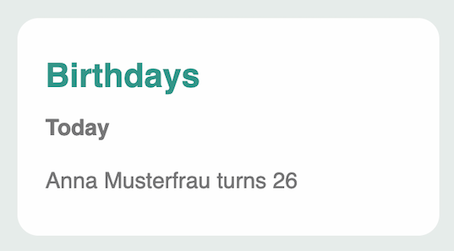
Otherwise, you can format the text field as usual. In the user area, it will appear as follows:
¶ Tag People
If you want to link the person's name, you can customize the link as follows.
<a href="/Contact/Detail/{Id}">{Firstname} {Lastname}</a>
If you are using a formatted text box, please click on the source code and paste the code there:
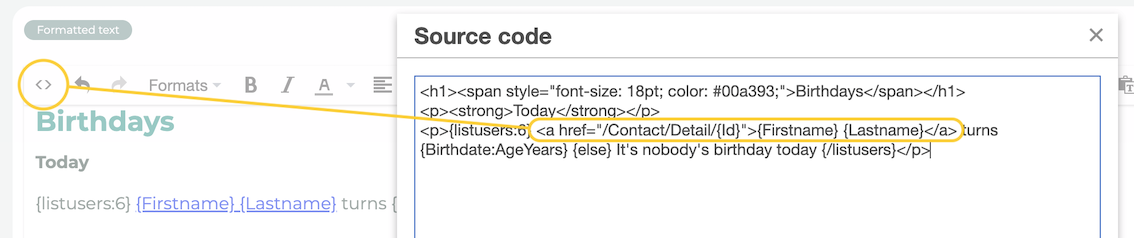
For an HTML field, you can simply insert the code in the correct place.
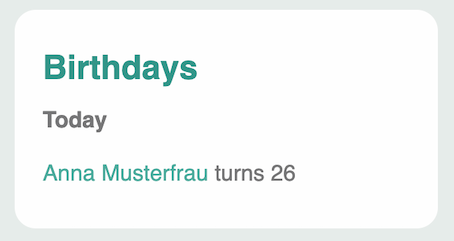
Now there is a link to the person's profile:
¶ Display Profile Pictures
In this example, we'll show you how to display profile pictures. Copy the code into an HTML field:
<table cellpadding="3">
{listusers:37}
<tr>
    <td><img src="{ImagePath}" style="max-width:50px;border-radius: 50px;" /> </td>
    <td>{Firstname} {Lastname}<br /><small>turns {Birthdate:AgeYears}</small></td>
</tr>
{/listusers}
</table>
Enter the automation ID again. If you also want to specify the ages of the individuals, replace the placeholder for “AgeYears.”
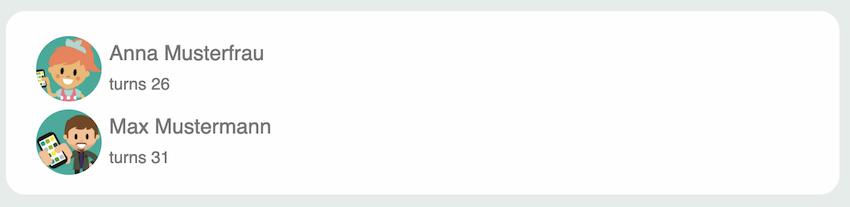
Of course, you can also use the code for anniversaries or new members. Just customize the text and the desired placeholders.
¶ {text} und {text:en} Placeholder
Using the placeholders {text} and {text:en}, text passages can be displayed in both the source language and any other language supported by LOLYO.
Example:
{text}Birthdays{text:de}Geburtstage{/text}
If you switch the language to German in LOLYO, the text from {text:de} will be displayed. To display the text in other languages, simply enter the corresponding abbreviation: {text:fr}, {text:it}, {text:hu}, etc.
¶ Anniversaries
{listusers:AUTOMATIONID}{Firstname} {Lastname}{PLACEHOLDER:AgeYears}{PLACEHOLDER:AgeDays}.{/listusers}
Enter the ID of the anniversary automation in the {listusers:AUTOMATIONID} placeholder. Alternatively, you can copy the placeholder from the automation target group.
Tip: You can find an automation's ID at the end of the URL when you open the automation. You can then enter the ID of any automation in the placeholder.
This example uses the placeholders {PLACEHOLDER:AgeYears} and {PLACEHOLDER:AgeDays}. For this to work, a external key must be defined for the extended profile field used for the start date.
Example: For the “Start Date” field, we use the foreign key “StartDate.” Therefore, we now enter {Start Date:AgeYears} into this placeholder.
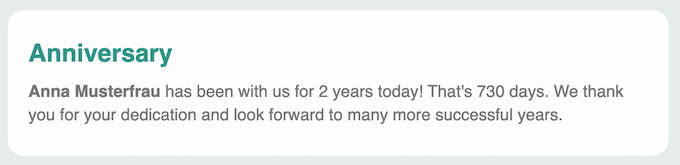
We’ll add some text to congratulate the employee on their anniversary.

In this example, we use the {else} placeholder to specify which text is displayed when no one is celebrating an anniversary.
In the user area, employees see the following message:
¶ New Members
To introduce new employees, you can use the placeholders already shown. We've created a simple example here:

We recommend adjusting the automation conditions for new hires slightly. We have set the conditions so that only the “Onboarding” group is searched and the year is not ignored.
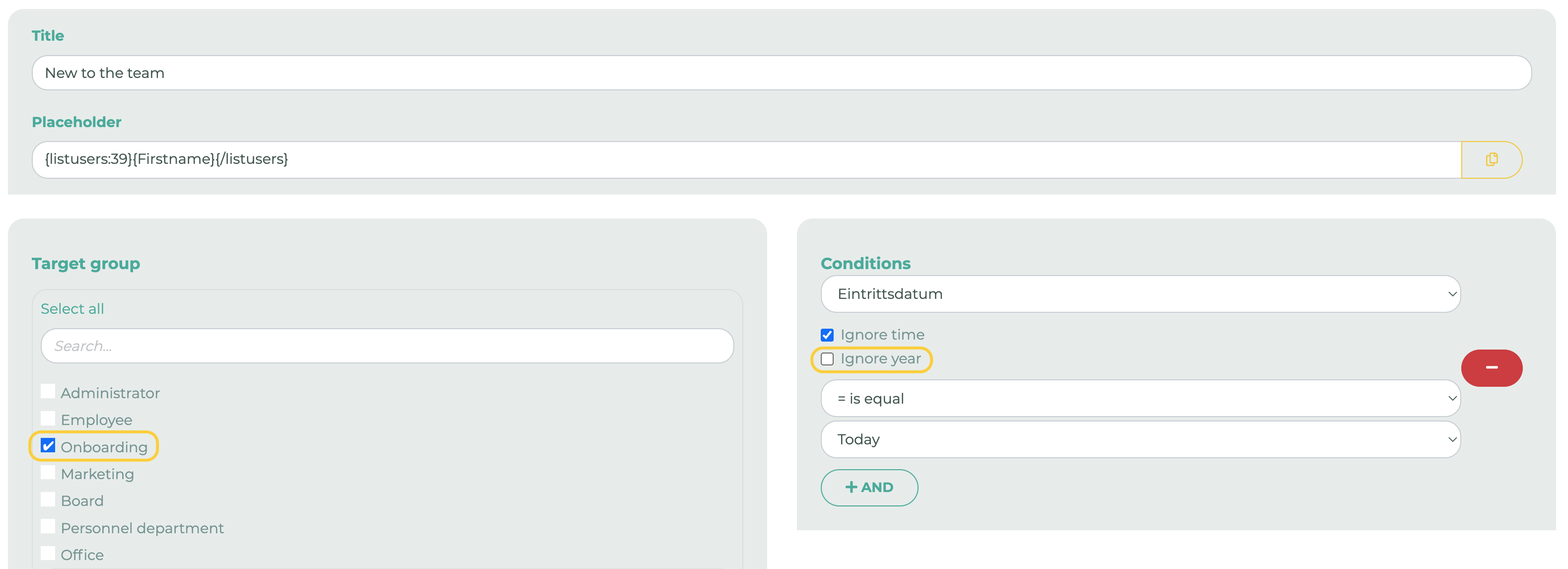
This ensures that only new employees are displayed.