You can use automation target groups to display birthdays, anniversaries, or new hires on an individual basis. Target groups are reusable employee filters without actions. They are not executed but are integrated into content using the displayed placeholder.
Please note: If you have restricted the employee contact list, people celebrating a birthday, anniversary, or new hire will only be displayed if the respective contact list restriction allows it.
¶ Requirements
The prerequisite for this is that the recipients have entered their birthday, entry date, etc. in an extended profile field (either added by the administrator or already present during import or entered in the profile by the employee himself). For more information on extended profile fields, click here.
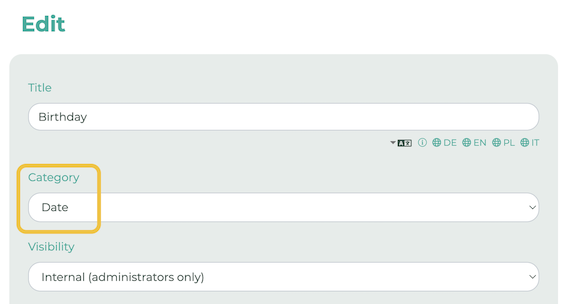
For this example, we have already created and added extended profile fields. The only important thing here is that the type is defined as date:
¶ Step 1
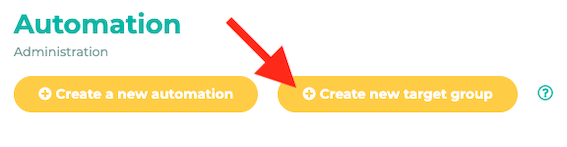
In the admin area, click Automation and select Create new target group.
¶ Step 2
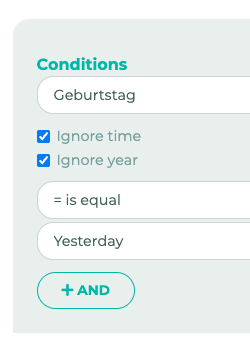
Now you can define the conditions for the automation target group. No action is performed. Instead, this generates a placeholder that you can insert into a text field or an HTML element.
The conditions work the same way as they do for automations.
In this example, we'll create an automation target group for birthdays.
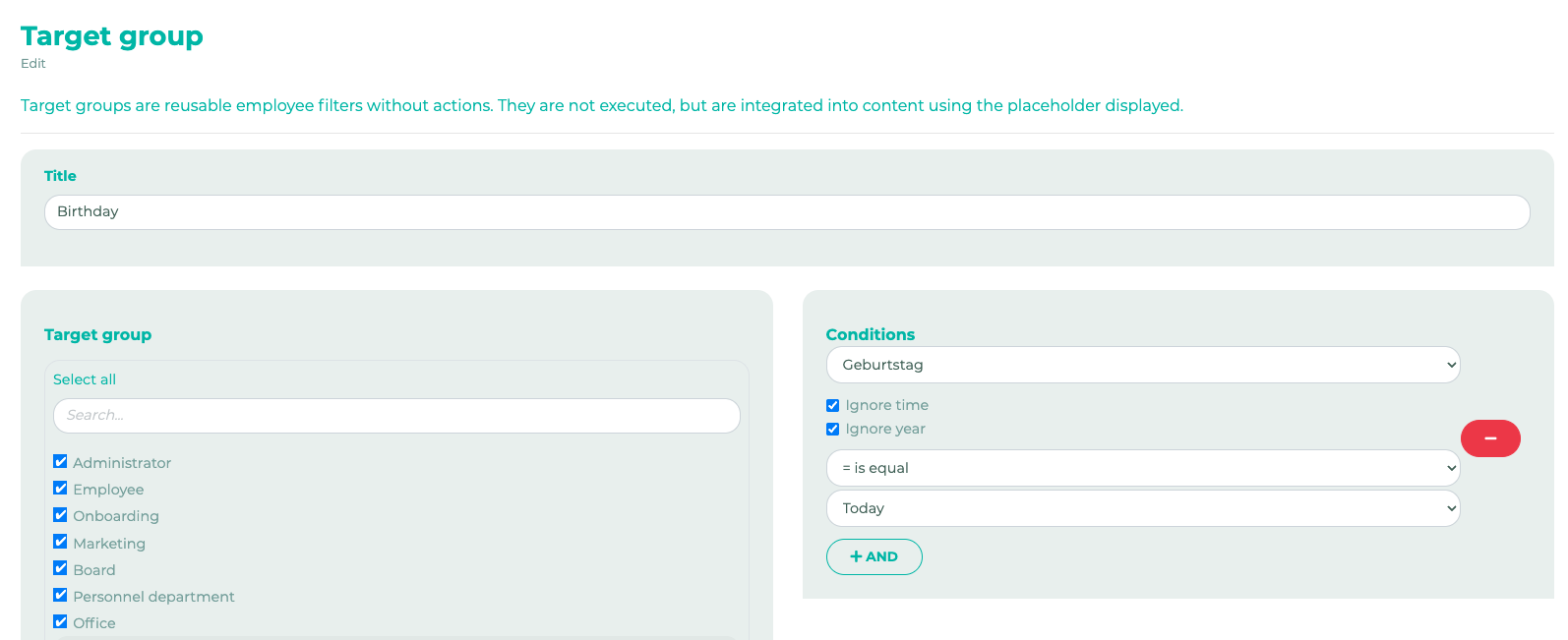
Click Save once you have defined the conditions.
¶ Step 3
You will now see the new target group in the automation overview. Click the copy icon there.
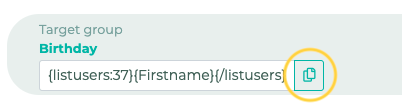
Tip: If you already have an automation for birthdays, anniversaries, etc., you can use that one as well and won’t need to create a new target group. The placeholders and the automation’s ID are important. You’ll find this ID at the end of the URL when you open the automation.
Make a note of the number and enter the ID in the corresponding text field or HTML element (Step 4).
¶ Step 4
Now go to Pages & Menu and edit the page where you want to display the automation target group.
Here, we'll select a formatted text field. Paste the placeholders you copied in Step 3.
Tip: Here, you can now enter the ID of any automation in {listusers:AUTOMATIONID}.

You can use the usual placeholders, such as {Firstname} and {Lastname}, to customize the text. There are also additional options available through the automation target group placeholders.
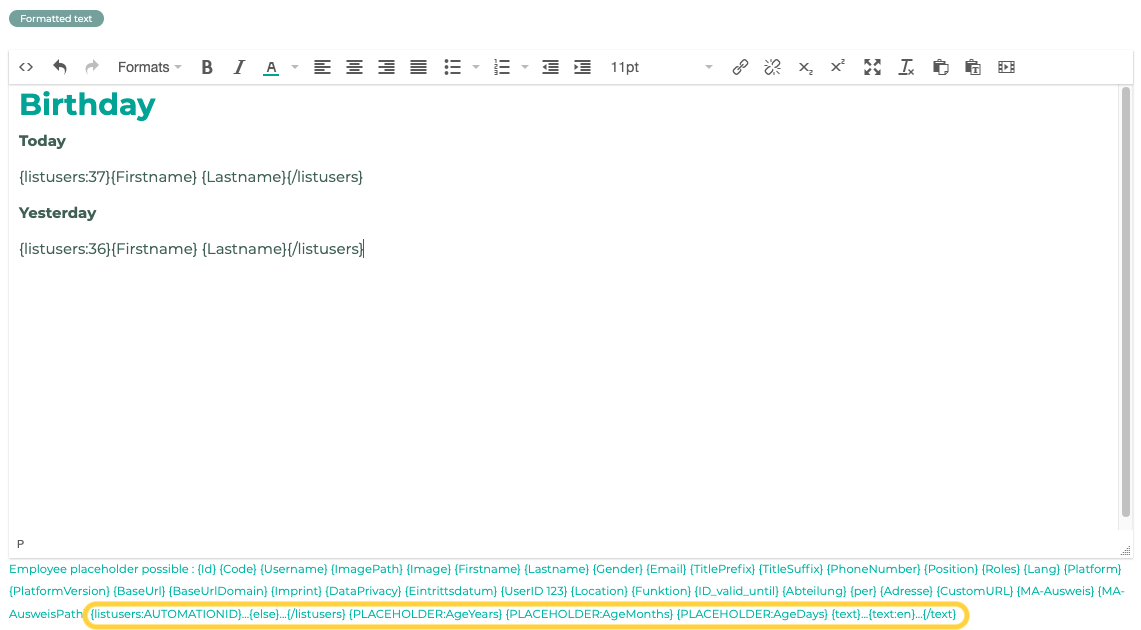
In this example, the text field was placed on the right. We also added a second automation target group to display yesterday's birthdays as well.
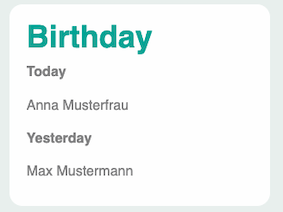
Today's and yesterday's birthdays are now displayed in the user area.
You can find more examples here.